The commission by basket value tool allows advertisers to set a specific commission rate depending on the value of a tracked order.
The tool can be located from the Commission Tab > Commission by Basket Value.
From here you can start creating rules by clicking on Add New Rule, this will open up the below table where you can set up the correct rules.
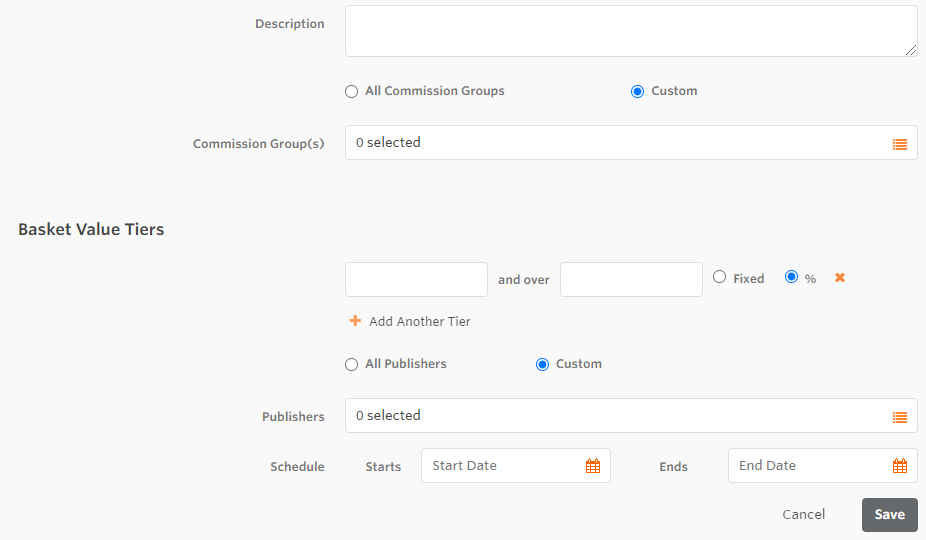
Step 1: Give your rule a description. This can be whatever you like and will not be visible to publishers (ex. Black friday promotion).
Step 2: Select the commission groups you want to be associated with the rule. You can either apply the rule to all commission groups (which will include future commission groups you create) or for select commission groups manually.
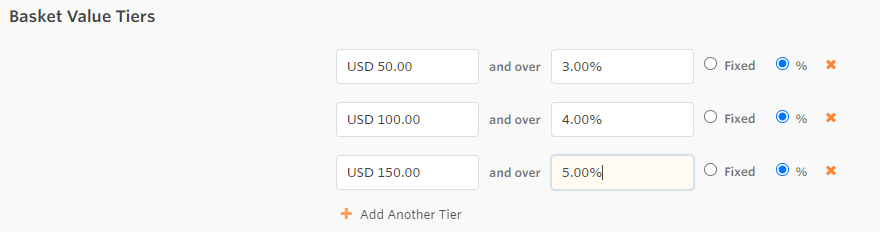
Step 3: Create the basket value tiers and associated commission (% or flat fee). In the below example we have created a rule that offers 3% for orders over $50, 4% for orders between $100 and $150 and 5% for orders over $150:
If a transaction came in at under $50 then the default program commission rate would be applied.
When creating rules it is worth noting that the minimum basket value tier value is $1 and the minimum rate of commission is 1% or $1.
Step 4: Select which publisher(s) you would like the rule applied to.
Step 5: Define when you would like the rule to be active. You can select a start and end date, specifying time in 15 minute intervals. Setting an end date is optional. If none is selected then the rule will remain active until you apply an end date and time.
Step 6: When you are happy with your rule, click Save. The table will refresh and you will be able to see the rule you have created.
Note: you can create as many rules as you like, however, publishers can only exist on one rule at a time.